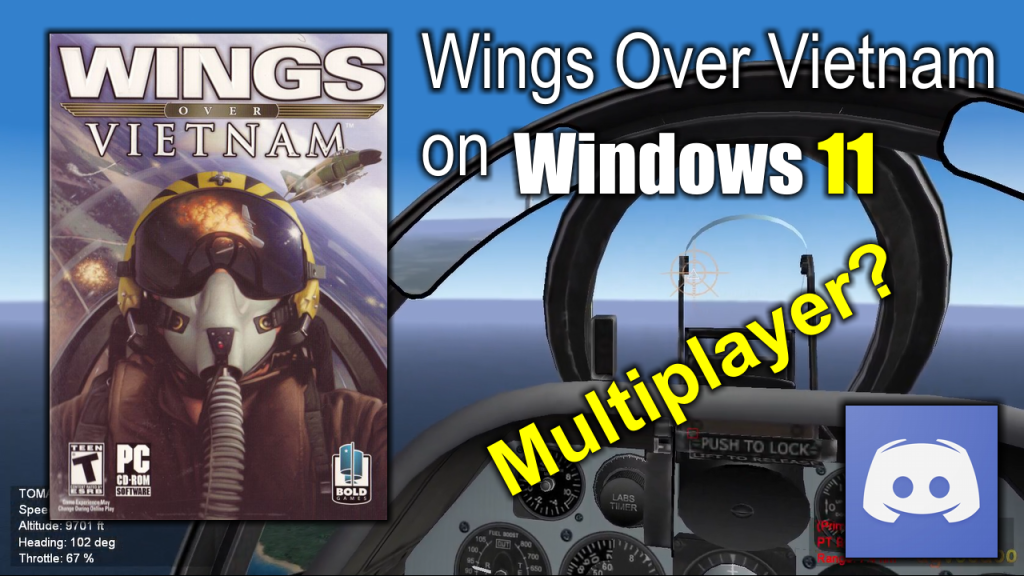
Today I’m flying Wings Over Vietnam, a flight simulator video game released back in 2004 for Windows XP. I’ve been trying to run this game on a modern PC for a while. Officially the game was not compatible with Windows 11, but I finally managed to make it run in this version.
The game looks and runs very smooth. The company that released Wings Over Vietnam later released Strike Fighters 2, a superior game in both graphics and compatibility with new Windows versions. But unfortunately, despite being a technologically superior game, Strike Fighters 2 lacks the multiplayer feature that an older game like Wings Over Vietnam has.
Introducing my new Discord Server
Now, since I could finally make the game work on a modern PC, I’d like to form a group of “virtual pilots” to give this game a new wave of life and maybe, just maybe, convince the original developer to give Strike Fighters 2 the multiplayer feature it desperately needs.
At first, I want to try the multiplayer feature of all the “Wings of” game series. The Strike Fighters games series has a great community of fans and modders that have been keeping the game alive for more than a decade, so I’d like to help the Strike Fighters community to get to a new level and bring all of those planes, weapons, effects and scenarios to the multiplayer arena, or in this case, the multiplayer skies.
Join the new Discord server to fly some Strike Fighters, and other flight sims, missions together.
How to install Jetfighter The Adventure (1988) on Windows 10/11
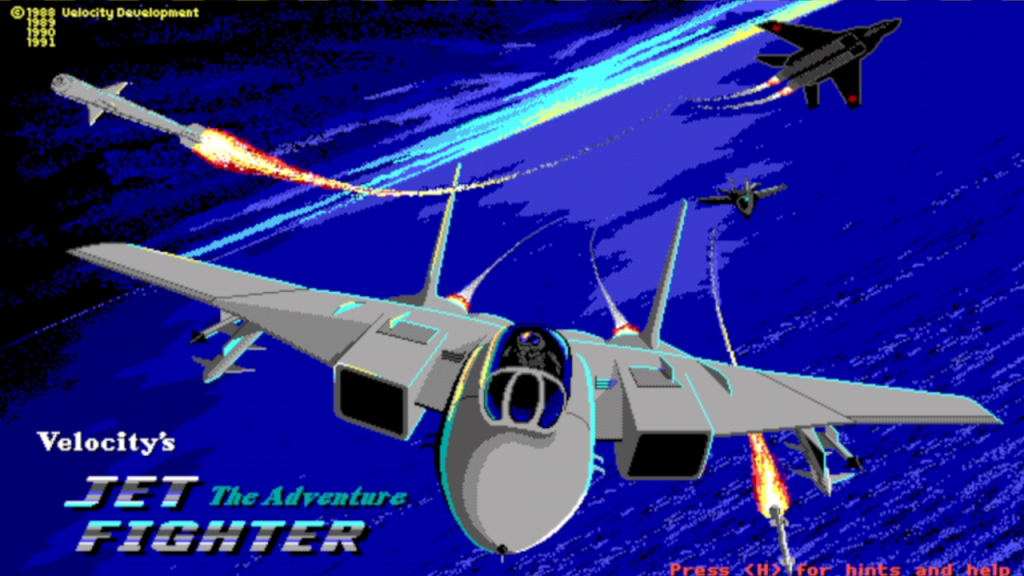
Jetfighter: The Adventure is a combat flight simulator published in 1988 for the PC/MS-DOS platform. This was the beginning of one of THE flight simulation video games that got me into flight simulation back in my early teenage years.
In this post I’m going to describe the process needed to install this very old MS-DOS game on a Windows 11 PC platform.
Software needed
Off course we will need several pieces of software, don’t worry they’re all free in order to install Jetfighter: The Adventure in our PC. Those programs are the following:
1. The game files: This seems to be obvious but still is good to mention. Since this game is, as far as I know, under the abandonware category, it can be found all over the Internet. I personally downloaded it from this link at MEGA.
2. DOSBox: Since the game was released for MSDOS, a now defunct Operative System, we’ll need an MSDOS emulator that will give us the right environment to install and play our MSDOS based games. This is a free and open-source program that you can download from its official website.
Installation process
1. Create a folder called DOS right on the root of your hard drive. This will be the virtual C:\ drive inside the DOSBox’s MS-DOS environment.
2. Enter your newly created DOS folder and create a sub-folder called JF.
3. Extract all the game files into the C:\DOS\JF folder. The ones inside the .RAR file you downloaded from Mega.
4. Install DOSBox. This is a straightforward process. Just execute the installation file you downloaded from the official DOSBox website, and basically click “next” on every step until the program completes the installation.
Configuration before you play
Since Jetfighter The Adventure was release in the eighties and was developed for the hardware available at the time, there are some DOSBox configurations we need to take care of before we play the game for the first time.
1. On your windows desktop click on the start icon, the one that looks like the Windows logo, usually located at the left of the toolbar at the bottom of the screen and look for the DOSBox program folder.
2. Look for the DOSBox programs folder and the look for the DOSBox [version number] Options icon and open it. See the following image for reference:
DOSBox [version number] Options icon
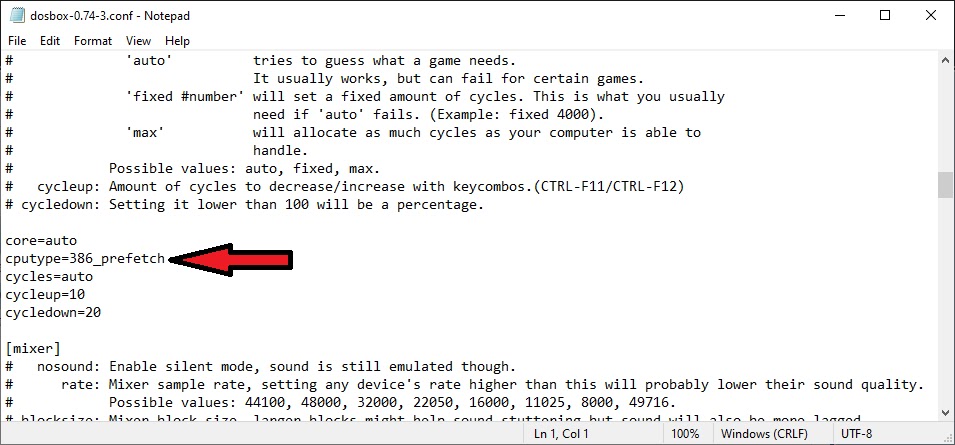
3. Once you click the DOSBox Options icon it will open the main configuration file of the program. Once in the file look the following command line:
cputype=auto
Now edit this line to look as follows:
cputype=386_prefetch
4. Now save all the changes and close the file.
DOSBox Configuration file
Play Jetfighter The Adventure on Windows
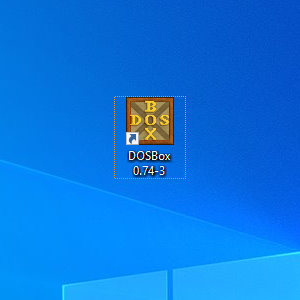
1. Open DOSBox by double clicking on the program’s shortcut located on your main desktop screen.
DOSBox desktop icon
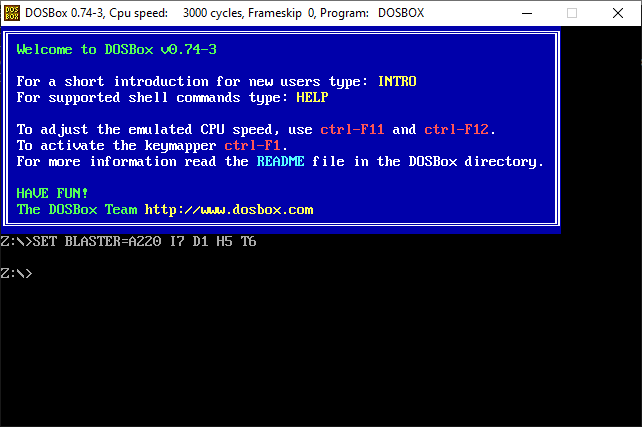
2. Once you open the program, you will see a screen showing the MSDOS environment. By default, DOSBox will be showing a “Z:\” as the default virtual drive.
DOXBox’s main screen
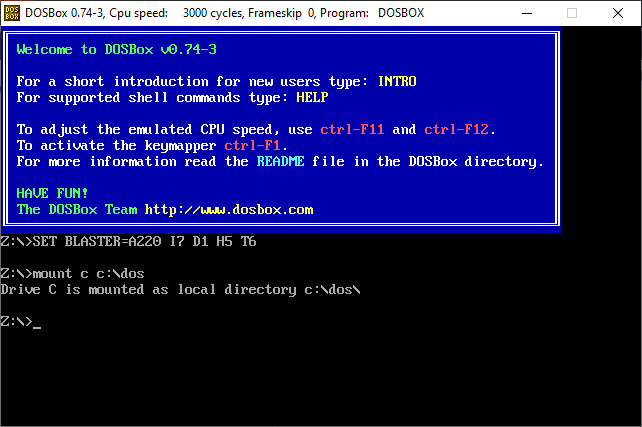
3. Now you will have to “Mount” your virtual “C:\” drive first in order to play your games using the following commands:
mount c c:\dos
Once the command is written, just press ENTER. If everything is all right, you’ll see the following message:
“Drive C is mounted as local directory c:\dos\“ as you can see on the following screen:
DOSBox screen after the “Mount C” command
4. Now, in order to play the game, you’ll to run the following commands:
c:\ <ENTER> This command will take you the virtual c:\ drive you mounted earlier.
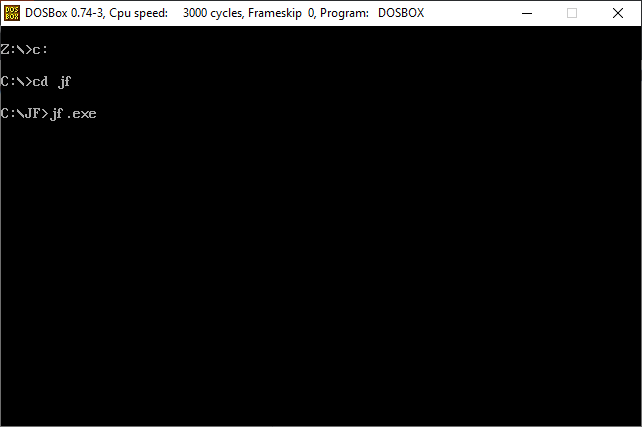
c:\jf <ENTER> This command will take you into the game’s main folder.
jf or jf.exe <ENTER> This command will open the actual game.
If everything goes all right, you’ll see a screen like this before running the game:
Entering the game’s folder on DOSBox
5. Enjoy playing Jetfighter The Adventure on Windows 11.
If you have any questions about this process, please leave it at the comment section bellow and I’ll answer you as soon as possible to help you play this awesome flight simulation game.
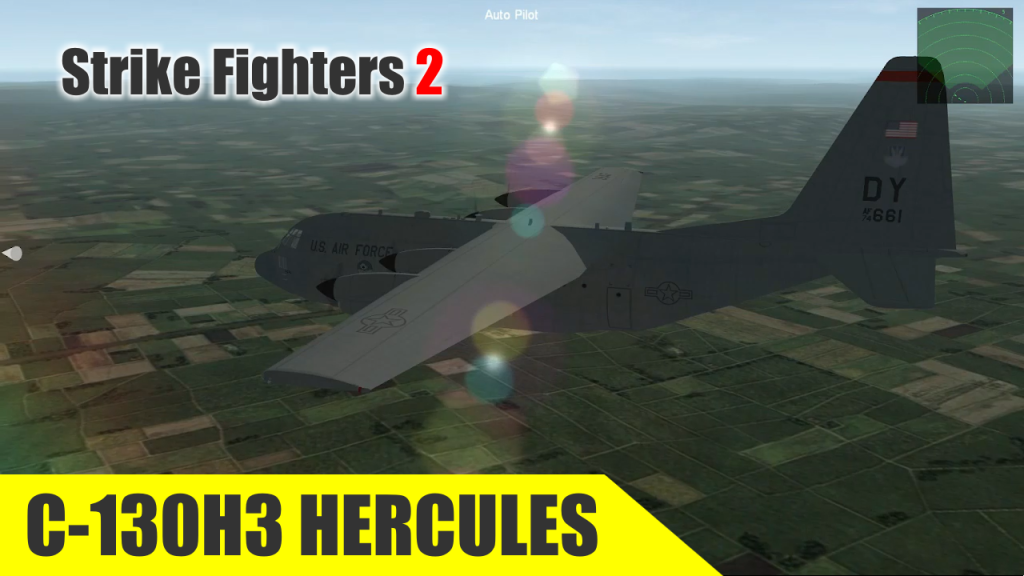
The C-130 entered service with the U.S. in 1956, followed by Australia and many other nations. During its years of service, the Hercules has participated in numerous military, civilian and humanitarian aid operations.
To play with this massive plane is pretty challenging since is not that maneuverable and fast as a fighter jet but it’s a good change for those days when you need a more relax fly.
Lockheed C-130 Hercules gameplay
Download the Lockheed C-130 Hercules
If you have Strike Fighters 2 on your PC, you can download, install a play the Hercules C-130 for free by clicking on the following link:
![DOSBox [version number] Options icon](https://thejetfighter.com/wp-content/uploads/2026/07/DOSBox-Setup-01.jpg)