If you’re looking to learn how to create custom missions in LockOn: Flaming Cliffs 2, the LockOn Flaming Cliffs 2 Mission Editor Manual is an essential resource for every virtual pilot and mission designer.
This comprehensive guide explains how to use the Mission Editor to build single-player and multiplayer missions, place aircraft and ground units, create waypoints, configure triggers, set mission objectives, and design realistic combat scenarios.
Whether you’re new to LockOn: Flaming Cliffs 2 or an experienced mission creator, this manual will help you unlock the full potential of one of the most popular combat flight simulators.
In this post, you’ll find a direct link to download the LockOn Flaming Cliffs 2 Mission Editor Manual so you can start creating your own missions with confidence.
If you’re interested in classic combat flight simulation, mission editing tutorials, or preserving valuable flight simulator documentation, be sure to save this post and share it with fellow flight simulation enthusiasts.
Download the manual today and take your LockOn: Flaming Cliffs 2 experience to the next level.
Radmin VPN is a free, easy-to-use tool that lets you create a virtual private network (VPN) between computers over the internet. Basically, it allows you to connect two or more PCs as if they were on the same local network, even if they’re far apart. This can be really useful if you want to play multiplayer games with your friends, share files securely, or access your PC from anywhere without compromising your privacy.
Think of it like connecting your devices through a secure “tunnel” that keeps everything private and encrypted. It’s like setting up a private network for your computers, but without all the complicated technical steps.
Where to Get Radmin VPN Free
The best part about Radmin VPN is that it’s completely free! You can download it directly from the official website. This means you won’t have to deal with any annoying subscriptions or hidden costs.
Click on the Download button to get the installer.
Once the download is complete, you’re ready to install it.
It’s super simple, and you don’t need to sign up for anything to get started!
How to Install Radmin VPN Free
Installing Radmin VPN is a straightforward process. Just follow these easy steps, and you’ll be up and running in no time.
Step 1: Run the Installer
Once you’ve downloaded the installer from the Radmin website, double-click it to run the setup. You might see a pop-up asking if you’re sure you want to allow the app to make changes to your device — just click Yes to continue.
Step 2: Follow the Setup Wizard
The setup wizard will guide you through the installation process. It’s just a matter of clicking Next a few times and agreeing to the terms and conditions. It doesn’t ask for much, so you can breeze through this step.
Step 3: Finish Installation
After the setup finishes, click Finish to close the installer. Radmin VPN should launch automatically after installation, but if it doesn’t, you can open it by clicking the shortcut icon on your desktop.
Now, you’re ready to connect!
How to connect to The Jetfighter’s Radmin VPN
Now that Radmin VPN is installed in your PC, it’s time to join The Jetfighter’s Radmin VPN:
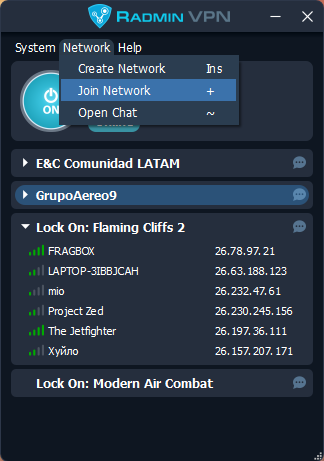
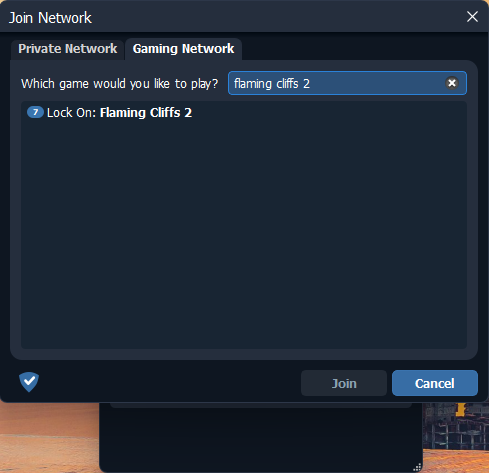
Click the Network option on Radmin’s upper menu. Then, click the Join Network button.
Radmin VPN: Join Network
Once you’re connected, you’ll see your connection in the main window, and your computer is now part of LockOn Flaming Cliffs 2 VPN totally free.
D-Fend Reloaded is a free and open source graphical environment for DOSBox. DOSBox emulates a complete computer including the DOS command line and allows to run nearly all old DOS based games on modern hardware with current Windows versions.
In this post I’m going to show how to install D-Fend Reloaded on your Windows 10 or Windows 11 PC.
Where to download D-Fend Reloaded
In order to install D-Fend Reloaded you have to download two files: the installer and the update package from its official website.
Installation process
In the following video, which you can also find on my YouTube Channel I explain the installation process of D-Fend Reloaded on Windows.