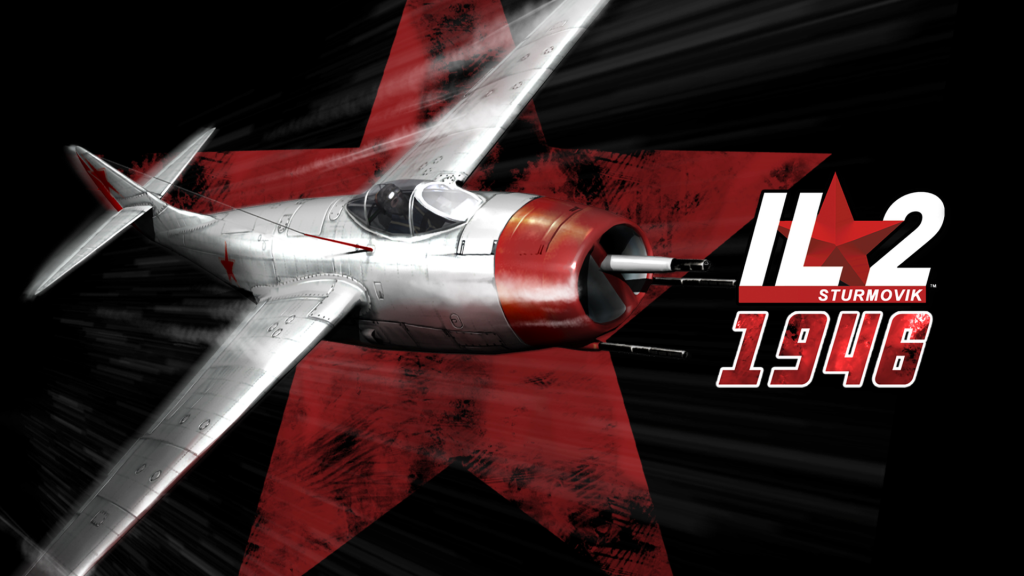
IL-2 Sturmovik 1946. One of those legendary combat flight simulators that proves you don’t need a brand-new gaming PC to have an incredible time in the skies! Take control of famous WWII aircraft, jump into intense dogfights, attack ground targets, and experience the thrill of classic PC flight simulation.
With its huge selection of aircraft, missions, campaigns, and an amazing modding community, IL-2 Sturmovik 1946 remains a favorite among fans of retro PC games, WWII aviation, and realistic combat flight simulators. If you grew up enjoying classic flight sims, this is definitely one worth remembering, and playing again!
Installation files
You can get the original installation files of IL-2 Sturmovik 1946 (version 4.13.4m) by clicking here. The total “weight” of those files is about 6.5GB.
Installation process
Before installing the game you need to have tools like WinRAR or 7-ZIP if you’re running the process on Windows 10. On Window 11 the .ZIP files can be extracted without installing anything else.
- Right click on the IL-2 1946 4.13.4m.zip file and the following option: Extract to “IL-2 1946 4.13.4m.zip/“. You’ll end up with a folder called IL-2 1946 4.13.4m.zip. Rename that folder taking out the .zip part of the name.
- Move the folder to the root of the hard drive you want the game to be opened from. Let’s say you want the game on your drive C:, you would end with the game copied on C:\IL-2 1946 4.13.4m.
- In the root folder where the game is installed in, look for a file called conf.ini and open it with a text editor program. By default, I use the Window’s notepad app.
- In the conf.ini file, look for the following lines:
- width=xxxx
- height=xxxx
- Replace xxxx with the actual width and height of your monitor screen’s resolution. Let’s say your monitor has a resolution of 1920 x 1080, those lines should look like this:
- width=1920
- height=1080
- Save the changes and exit the conf.ini file.
- Now in the same root folder where the game is installed, look for the following file: il2fb.exe.
- Double click that file to open the game. You can later create a shortcut on your desktop to open the game more easily.
Leave a Reply