Flight simulation old and new

Tag: How to install Page 2 of 14

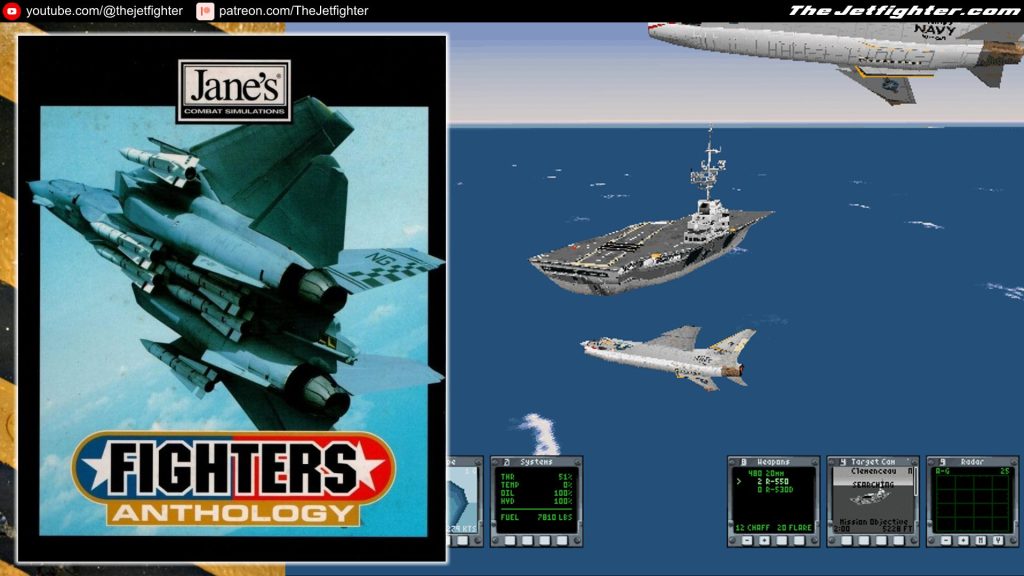
How to install Jane’s Fighters Anthology on Windows 10/11

How to install Jane's Fighters Anthology on Windows 10/11
How to install Jane’s Fighters Anthology on Windows 10/11

Before we begin I’d like to let you know this is an installation process I learned from the USNRaptor’s website. So thanks to whoever run that page, it helped me to get this game running on my Windows 11 PC and enjoy one of the classics titles of the flight simulation video games genre.

I’m creating this post just to replicate this knowledge and help more retro flight simulation enthusiasts to relive those awesome times.

What do you need to install Jane’s Fighters Anthology

You have to download the two installation CDs in the form .ISO files. Just click on the links bellow to get those files:

Installation process

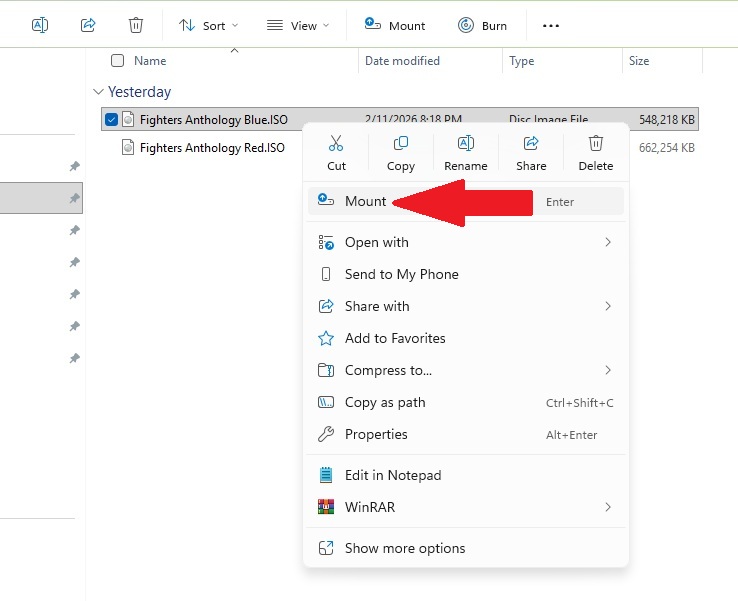
1. Mount the installation CD by right-clicking on the Fighters Anthology Blue.ISO file and selecting  the Mount option.

01. Mount Installation CD

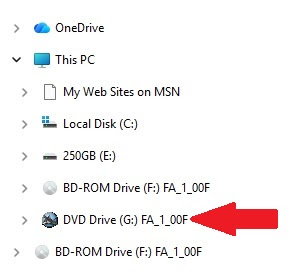
2. Open Windows Explorer and look for the now mounted Fighters Anthology disk. It should look like this: DVD Drive (E:) FA_1_00F

02-Installation-cd-mounted

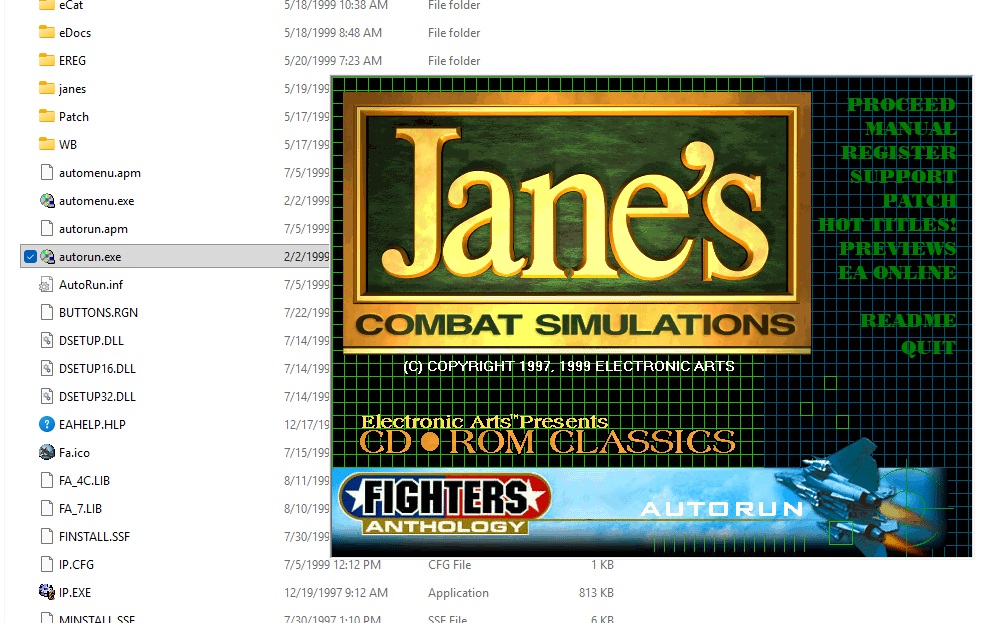
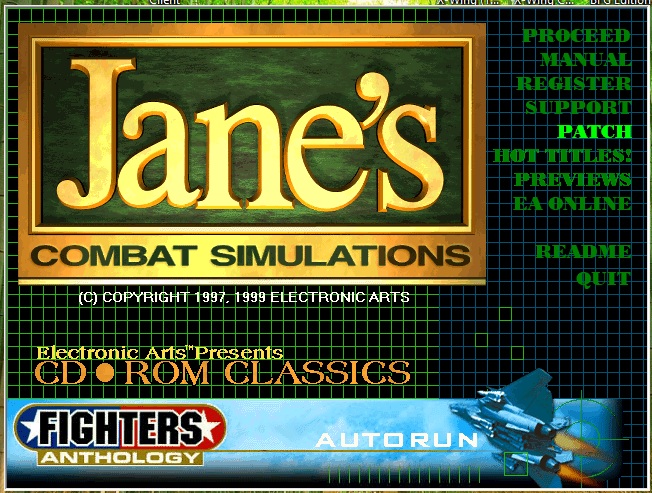
3. Look on the mounted installation CD for the Autorun.exe file to open the installation menu.

03-Installation-menu

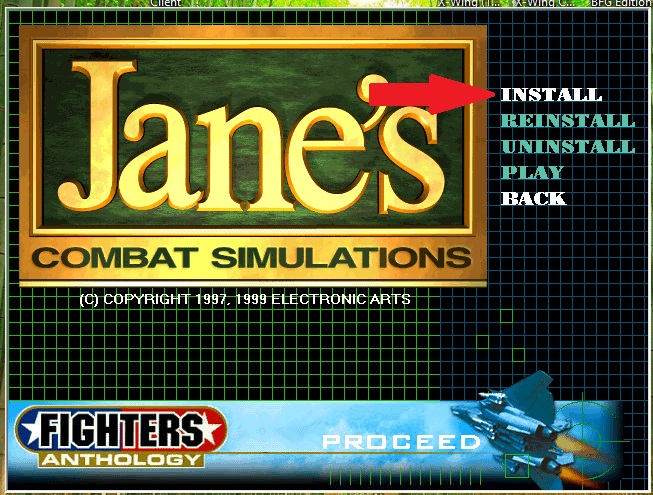
4. At the top-right of the installation menu, click on the Proceed option and when the installation program opens just cick Install.

04-Installation-menu-install

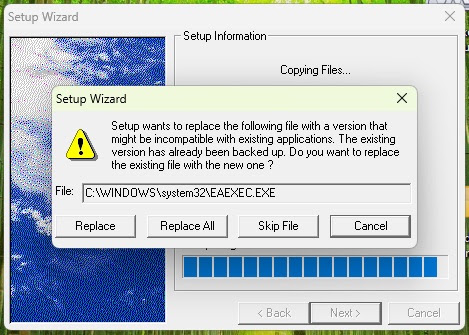
5. At some point soon, the install program is going to ask to overwrite some files located in the Windows System32 folder. Cick ok, it wont hurt your computer.

05-overwrite-files

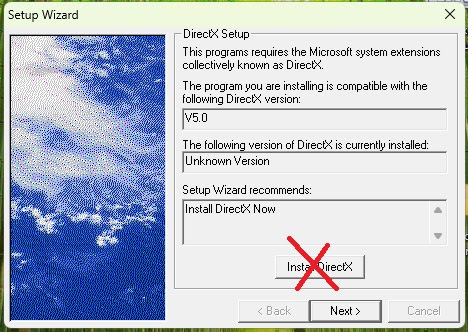
6. Later on, the installation program will ask to install Direct X. Just click Next. Do NOT install  this version of Direct X on your PC.

06-No-DirectX

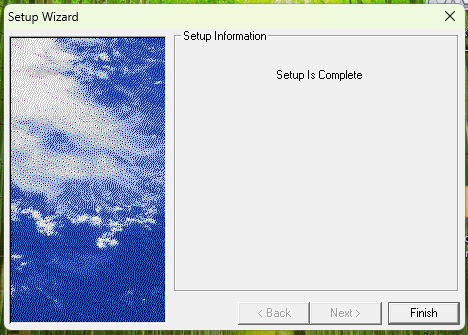
7. Now the installation is finished DO NOT open the game yet. 

07-install-finish

8.  Click ‘Patch’.  Click ‘Install’.  Follow the instruction given by the install program.

08-install-patch

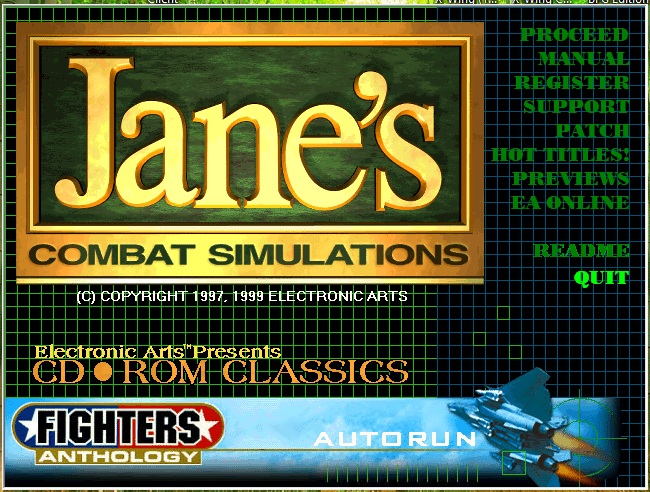
9. Once the Patch is installed, click OK. Then click Back, and in main menu and finally click on Quit to finish the installation process.

9-quit-install

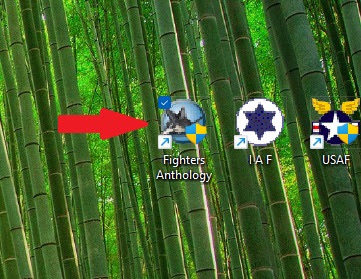
10. Go to the Fighters Anthology icon (it should be on your desktop) and double left-click on it to start the game.  Let the Jane’s intro video start and play. Do NOT interrupt the game start-up process, it would cause the game to crash and / or lock-up your system.

10-game-icon

11. Enjoy the game…

How to install Radmin VPN and connect to the LockOn: Flaming Cliffs 2 VPN

How to install Radmin VPN

Radmin VPN is a free, easy-to-use tool that lets you create a virtual private network (VPN) between computers over the internet. Basically, it allows you to connect two or more PCs as if they were on the same local network, even if they’re far apart. This can be really useful if you want to play multiplayer games with your friends, share files securely, or access your PC from anywhere without compromising your privacy.

Think of it like connecting your devices through a secure “tunnel” that keeps everything private and encrypted. It’s like setting up a private network for your computers, but without all the complicated technical steps.

Where to Get Radmin VPN Free

The best part about Radmin VPN is that it’s completely free! You can download it directly from the official website. This means you won’t have to deal with any annoying subscriptions or hidden costs.

To get it:

  • Go to the official Radmin VPN website.
  • Click on the Download button to get the installer.
  • Once the download is complete, you’re ready to install it.

It’s super simple, and you don’t need to sign up for anything to get started!

How to Install Radmin VPN Free

Installing Radmin VPN is a straightforward process. Just follow these easy steps, and you’ll be up and running in no time.

Step 1: Run the Installer

Once you’ve downloaded the installer from the Radmin website, double-click it to run the setup. You might see a pop-up asking if you’re sure you want to allow the app to make changes to your device — just click Yes to continue.

Step 2: Follow the Setup Wizard

The setup wizard will guide you through the installation process. It’s just a matter of clicking Next a few times and agreeing to the terms and conditions. It doesn’t ask for much, so you can breeze through this step.

Step 3: Finish Installation

After the setup finishes, click Finish to close the installer. Radmin VPN should launch automatically after installation, but if it doesn’t, you can open it by clicking the shortcut icon on your desktop.

Now, you’re ready to connect!

How to connect to The Jetfighter’s Radmin VPN

Now that Radmin VPN is installed in your PC, it’s time to join The Jetfighter’s Radmin VPN:

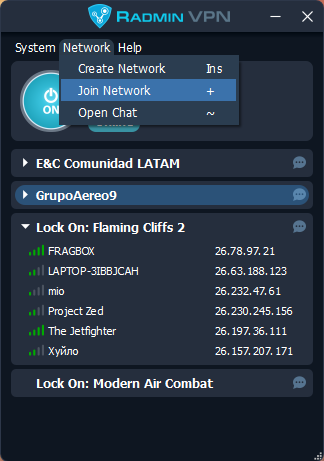
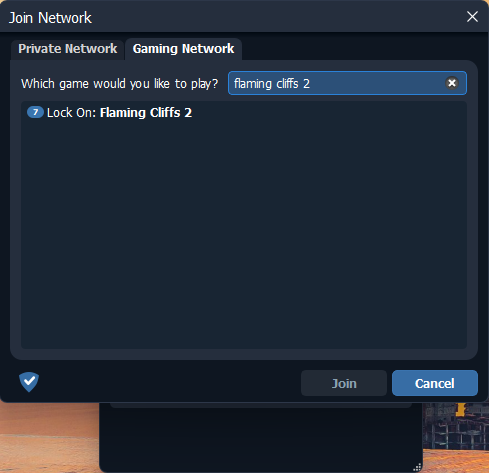
  • Click the Network option on Radmin’s upper menu. Then, click the Join Network button.
Radmin VPN: Join Network

Once you’re connected, you’ll see your connection in the main window, and your computer is now part of LockOn Flaming Cliffs 2 VPN totally free.

Radmin VPN: LockOn Flaming Cliffs 2 network

How to Install Joint Strike Fighter on Windows 11

 How to Install Joint Strike Fighter on Windows 11
How to Install Joint Strike Fighter on Windows 11

Joint Strike Fighter is a 1997 combat flight simulator designed by Innerloop Studios and published by Eidos Interactive. Innerloop produced the game chiefly to be a showcase for their cutting edge game engine, which they planned to license to other game developers.

The game lets the player assume the role of wing commander of an unnamed western alliance campaigning in four different (fictional) war scenarios taking place in Afghanistan, Colombia, Korea, and the Kola Peninsula. The player may pilot either of the two prototype multi-role combat aircraft that contended in the Joint Strike Fighter Program: the Lockheed Martin X-35 (later selected for production) and the Boeing X-32. 

What do you need to make the installation

To complete the installation of Whirlwind Over Vietnam on your Windows 11 PC you will need the following programs or software:

  • Joint Strike Fighter installation CD/.ISO image (Download)
  • Joint Strike Fighter game patch (Download)

Installation process

This is a standalone and straight forward installation process which is explained with more detail in the following video:

Page 2 of 14

Powered by WordPress & Theme by Anders Norén