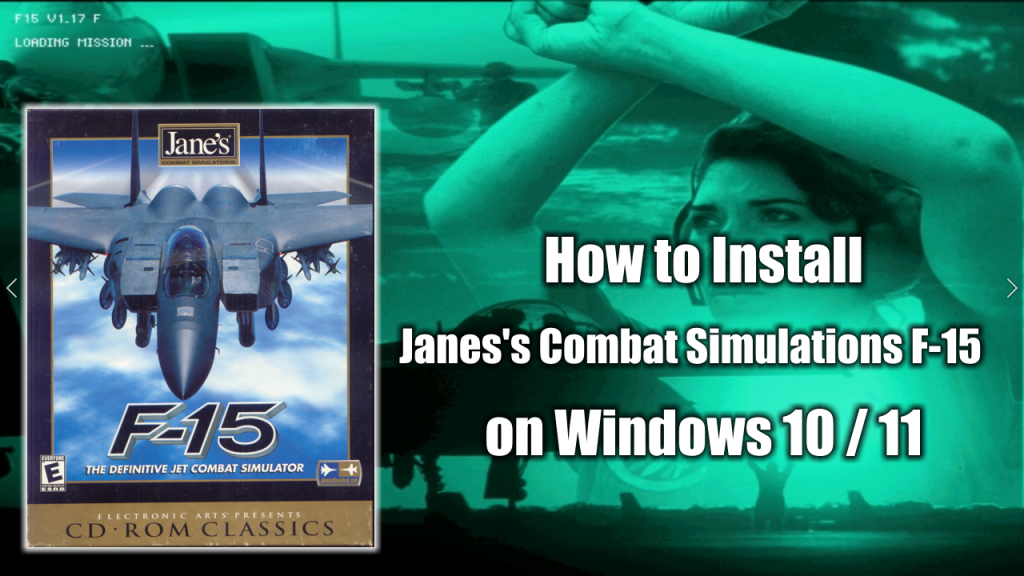
In this post I’ll show you how to install the flight simulation video game Jane’s Combat Simulations: F-15 on a modern Windows 10 or Windows 11 PC and make the necessary configuration to make it run smoothly. A classic video game that deserves to be enjoyed by old and new generations alike.
What is Jane’s Combat Simulations F-15?
Jane’s F-15 is a combat flight simulator video game developed and released by Electronic Arts in 1998 for PC. It models the McDonnell Douglas F-15E Strike Eagle. The game has two campaigns: one based on the 1991 Gulf War and the other focusing on a fictional conflict with Iran.
The virtual cockpit was one of the first of its kind, it allowed the player to switch between the pilot and the weapon systems officer seat in the back of the cockpit to monitor the different multi-functional displays.
What do you need to make the installation
To complete the installation of Jane’s Combat Simulations F-15 on your Windows 10/Windows 11 PC you will need the following programs or software:
- The Jane’s Combat Simulations F-15 installation CDs or .ISO images. (Download / Mirror)
- DxWnd (Download / Mirror)
- DxWnd Fix (Download / Mirror)
- Jane’s Combat Simulations F-15’s 1.17 patch (Download / Mirror)
Jane’s F15 Installation process
- Install DxWnd. Decompress the mydxwnd.7z file (you can do that with winrar) and copy its content on the root of your C: drive. The resulting directory path should be: C:\mydxwnd
- Install Jane’s Combat Simulations F-15.
- Install Jane’s Combat Simulations F-15’s 1.17 patch
- Install DxWnd Fix files. Decompress the mydxwnd.fix.7z file (you can do that with winrar) and copy its content on the root of the C:\mydxwnd folder. Overwrite if necessary.
- Run the configuration scripts in C:\mydxwnd:
- Run f15.video.fix.cmd. This will allow to render text correctly (To roll back this procedure run f15.video.restore.cmd).
- Run genini.cmd. It will generate config ini file for DxWnd with correct paths to the game.
- Run verify.cmd. This script will check files and hashes to ensure everything installed correctly in previous steps. Everything should be “green”.
- Run nglide_setup.exe and setup glide wrapper. Enable Vertical Synchronization and Aspect correction.
How to run Jane’s Combat Simulations F-15
In order to run the actual game, open the main game’s directory C:\mydxwnd, and then double click the dxwnd.cmd file. This will open the DXWnd window program.
In the DXWnd window look for the F-15 icon. Double click on it and enjoy the game.
The original idea for this post and video was inspired by this post at Vogons.org.