Flight simulation old and new

Category: HOW TO INSTALL Page 9 of 13

How to install tutorials for video games, programs and tools

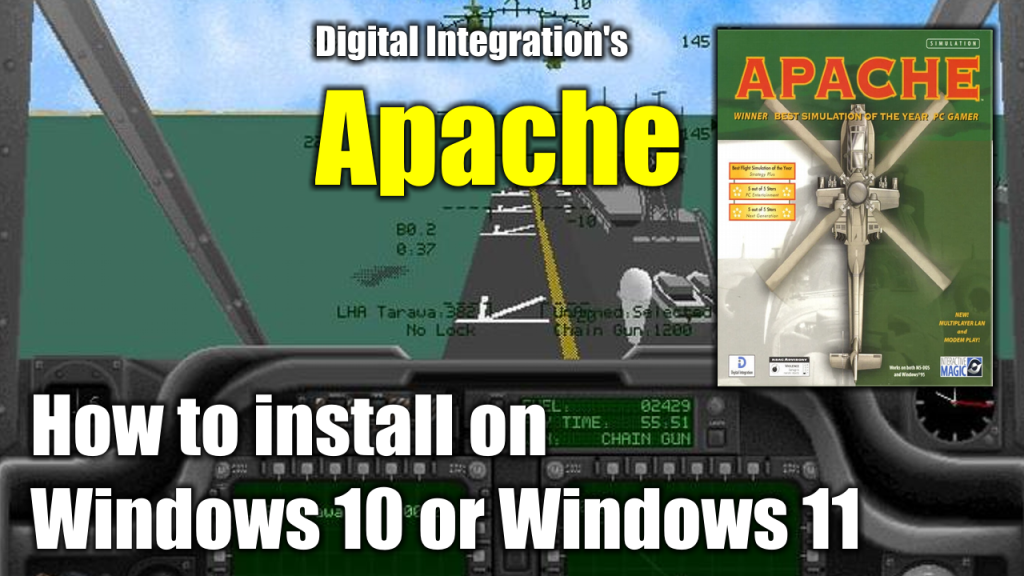
How to install Apache (Digital Integrations, 1994) on Windows 10/11

How to install Apache (Digital Integrations, 1994) on Windows 10/11

Considered by many to be the most powerful chopper ever to take to the skies, the Apache Longbow is the star of this detailed simulation.

Doing battle in four different combat theaters, you’ll use the strength and agility of the Apache to defeat packs of Russian tanks, anti-aircraft systems, and other deadly threats.

In this article I will show you how to install Apache on modern Windows 10 or Windows 11 computers.

What do you need to make the installation

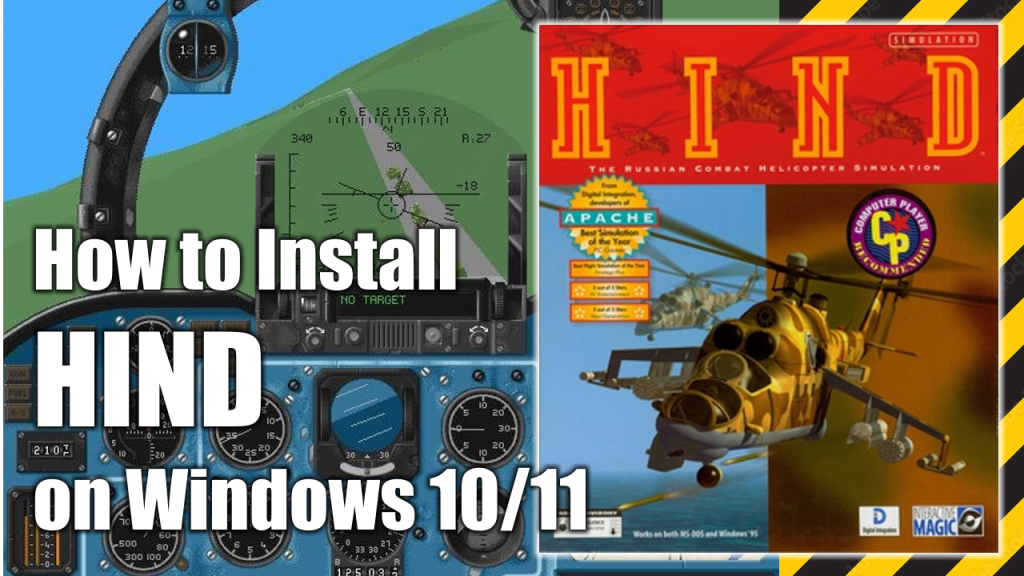
To complete the installation of Digital Integration’s HIND on your Windows 10/Windows 11 PC you will need the following programs or software:

  • WineVDM. Allows modern 64-bits PCs to run 16-bit Windows programs. (Download)
  • Apache’s installation CDs or .ISO images. (Download)
  • DxWnd (Download)
  • DxWnd Fix (Download)

Installation process

This is a standalone and straight forward installation process which is explained with more detail in the following video:
How to install Flanker 2.5 and update to Flanker 2.51 on Windows 10/11

 How to install Flanker 2.5 and update to Flanker 2.51 on Windows 10/11
How to install Flanker 2.5 and update to Flanker 2.51 on Windows 10/11

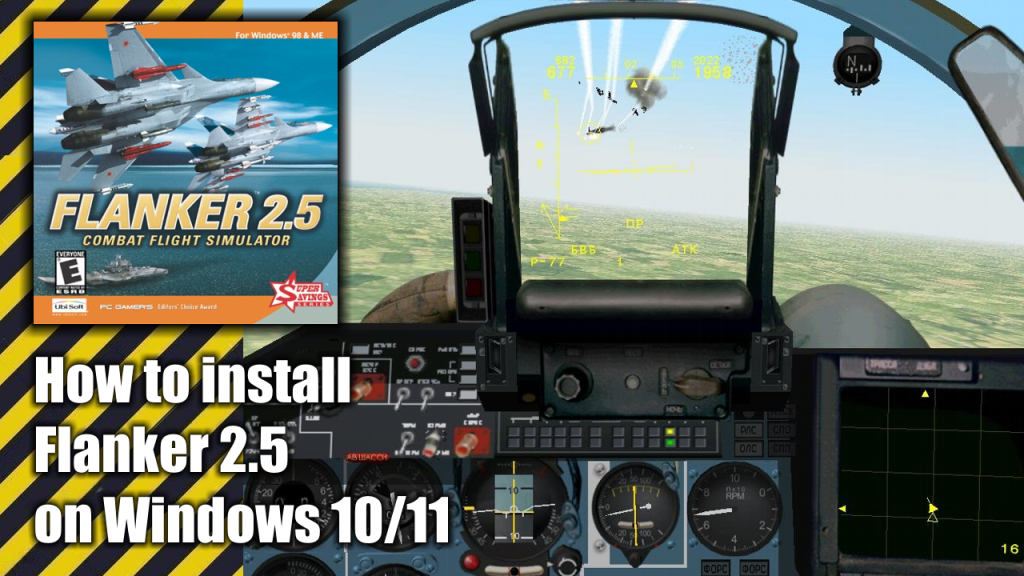
Flanker 2.0 is a combat flight simulator developed by Eagle Dynamics and released in 1999. It is a direct sequel to SU-27 Flanker. The game allows players to fly the Sukhoi SU-27 and SU-33 in combat missions.

In 2001, a major patch titled Flanker 2.5 was released for free to users who already owned Flanker 2.0 but was also available as a fully new purchasable game.

In this article I will show you how to install the standalone version of Flanker 2.5 and its upgrade to Flanker 2.51 and to make it work on Windows 10 or Windows 11 PCs.

What do you need to install Flanker 2.51

In order to install Flanker 2.5 and its upgrade to Flanker 2.51 you will need to download the following programs:

  • Flanker 2.0 Installation CD/Image (Download)
  • Flanker 2.5 Installation CD/Image (Download)
  • Flanker 2.5 Patch (Download)
  • Flanker 2.5 Training / Missions update patch (Download)
  • Flanker 2.51 Upgrade (Download)
  • Flanker 2.51 No CD Patch (Download)

Alternative files Download (in case the one given above don’t work).

Installation process

This is a standalone and straight forward installation process which is explained with more detail in the following video:

How to install iF-16 Fighting Falcon (Digital Integration, 1996) on Windows 10/11

How to install iF-16 Fighting Falcon (Digital Integration, 1996) on Windows 10/11

iF-16 Fighting Falcon is a combat flight simulator video game released in 1996 by Digital Integrations, the same people who brought Hind and Apache Longbow into the world. Originally intended to be played on the MSDOS/Windows 3.1 platforms. The graphics are really good for a 1996 game, and despite its age the game was fairly realistic in terms of simulation.

In this pot you’ll find a step-by-step guide to install and run iF-Fighting Falcon on a Windows 10 or Window 11 modern PC.

What do you need to install iF-16 Fighting Falcon

In order to install iF-16 Fighting Falcon your Windows 10 or Windows 11 PC you need to have the following programs at hand:

  1. Digital Integrations iF-16 Fighting Falcon installation CD or ISO image. (Download)
  2. WineVDM. Allows modern 64-bits PCs to run 16-bit Windows programs. (Download)
  3. DxWnd (Download)
  4. DxWnd Fix (Download)

iF-16 Fighting Falcon installation process

  1. Decompress OTVDM’s ZIP file. On the OTVDM folder, double click on install.exe and let the program be installed.
  2. Decompress the mydxwnd.7z file (you can do that with winrar) and copy its content on the root of your C: drive. The resulting directory path should be: C:\mydxwnd
  3. Insert the CD or mount the .ISO image of iF-16 Fighting Falcon and make a full installation of the game on C:\mydxwnd\f16.
  4. Install DxWnd Fix files. Decompress the mydxwnd.fix.7z file (you can do that with winrar) and copy its content on the root of the C:\mydxwnd folder. Overwrite if necessary.

How to run iF-16 Fighting Falcon

  1. Insert the CD or mount the .ISO image of iF-16 Fighting Falcon. The game only works if the CD or ISO image is mounted.
  2. Open the folder C:\mydxwnd\ and double click on dxwnd.cmd.
  3. Finally, double click on the F16 icon and enjoy the game 

The following is a video of the installation process, and then running the game once the game is installed on your PC.

The original idea for this post and video was inspired by this post at Vogons.org.

Page 9 of 13

Powered by WordPress & Theme by Anders Norén