Flight simulation old and new

Tag: How to install Page 10 of 14

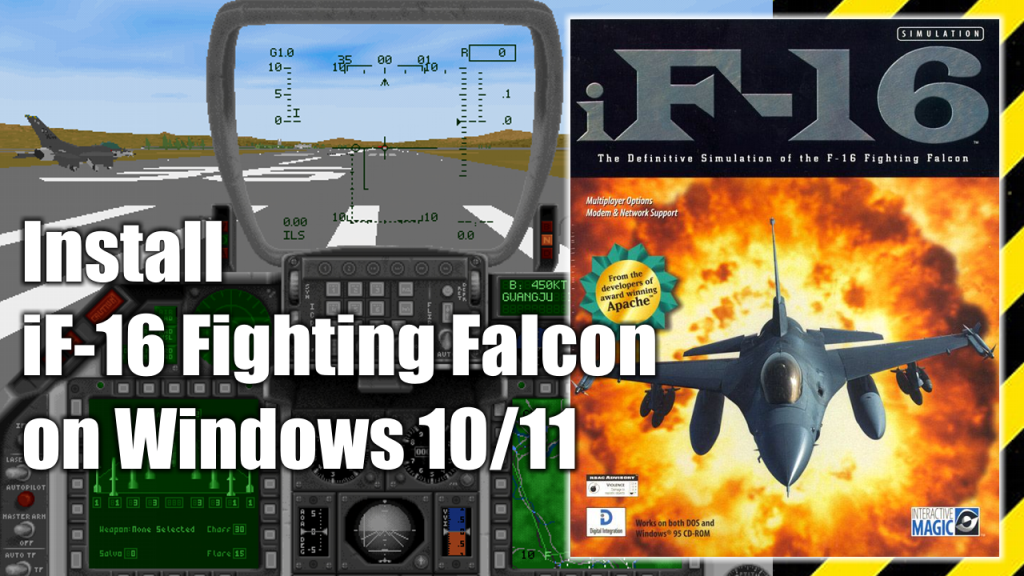
How to install iF-16 Fighting Falcon (Digital Integration, 1996) on Windows 10/11

How to install iF-16 Fighting Falcon (Digital Integration, 1996) on Windows 10/11

iF-16 Fighting Falcon is a combat flight simulator video game released in 1996 by Digital Integrations, the same people who brought Hind and Apache Longbow into the world. Originally intended to be played on the MSDOS/Windows 3.1 platforms. The graphics are really good for a 1996 game, and despite its age the game was fairly realistic in terms of simulation.

In this pot you’ll find a step-by-step guide to install and run iF-Fighting Falcon on a Windows 10 or Window 11 modern PC.

What do you need to install iF-16 Fighting Falcon

In order to install iF-16 Fighting Falcon your Windows 10 or Windows 11 PC you need to have the following programs at hand:

  1. Digital Integrations iF-16 Fighting Falcon installation CD or ISO image. (Download)
  2. WineVDM. Allows modern 64-bits PCs to run 16-bit Windows programs. (Download)
  3. DxWnd (Download)
  4. DxWnd Fix (Download)

iF-16 Fighting Falcon installation process

  1. Decompress OTVDM’s ZIP file. On the OTVDM folder, double click on install.exe and let the program be installed.
  2. Decompress the mydxwnd.7z file (you can do that with winrar) and copy its content on the root of your C: drive. The resulting directory path should be: C:\mydxwnd
  3. Insert the CD or mount the .ISO image of iF-16 Fighting Falcon and make a full installation of the game on C:\mydxwnd\f16.
  4. Install DxWnd Fix files. Decompress the mydxwnd.fix.7z file (you can do that with winrar) and copy its content on the root of the C:\mydxwnd folder. Overwrite if necessary.

How to run iF-16 Fighting Falcon

  1. Insert the CD or mount the .ISO image of iF-16 Fighting Falcon. The game only works if the CD or ISO image is mounted.
  2. Open the folder C:\mydxwnd\ and double click on dxwnd.cmd.
  3. Finally, double click on the F16 icon and enjoy the game 

The following is a video of the installation process, and then running the game once the game is installed on your PC.

The original idea for this post and video was inspired by this post at Vogons.org.

How to install the MOD-1 of Flaming Cliffs 2

How to install the MOD-1 of Flaming Cliffs 2

MOD-1 is a modified and improved upgrade for the combat flight simulation video game Lock-On Flaming Cliffs 2. Developed by the same people behind the Server BVB, the last online Flaming Cliffs 2 server in service nowadays.

The MOD allows us to control all the planes in the game with detailed 3D models and HD textures of all aircraft and cockpits. New cabins for transport aircraft and old aircraft, adds new countries to the list and realistic reload time for all aircraft among many, many other improvements.

Where to download the Flaming Cliffs 2’s MOD-1

The game is Russian made, so does the Server BVB’s group behind the MOD-1. As far as I know, the only social network profile this group has, can be visited in the “Russian Facebook” platform called VKontakte.

As of the making of this post, the latest version of MOD-1 is v.4.1. You can download the MOD from either Google Drive or Yandex Disk and has a “weight” of 2.51GB.

How to install MOD-1

In the following video I show a step-by-step guide to install the MOD-1. Off course, you need to have Lock-On Modern Air Combat and Lock-On Flaming Cliffs 2 previously installed on your PC in order to install and make this MOD works.

How to install Lock-On Flaming Cliffs 2 on Windows 10/11

How to install Lock-On Flaming Cliffs 2 on Windows 10/11

Lock-on Flaming Cliffs 2 is an expansion and an evolution of Lock-on: Flaming Cliffs which was by itself an unofficial add-on to Lock On: Modern Air Combat. It is applied either to the base game or on top of the original Flaming Cliffs. It contains the content of the original add-on as well as updates to aircraft, sensor, and weapon systems.

This add-on allows users of Lock On: Modern Air Combat and DCS: Black Shark to fly together in online multiplayer games, either head-to-head or working cooperatively in missions.

What do you need to install Flaming Cliffs 2

In order to install Lock-On Flaming Cliffs 2 in you Windows 10 or Windows 11 PC you will need to have the following programs available on your PC:

Important: before you run the keygen you have to disable any antivirus/antimalware software installed on you PC to avoid a false positive alert. You can enable back your antivirus/antimalware software once Flaming Cliffs 2 is activated.

Installation process

Before you begin to install Flaming Cliffs 2, you need to have Lock-On Modern Air Combat previously installed on your PC. Go to this page to know how to install LOMAC prior to FC2.

In this video I will show you how to install and activate LockOn Flaming Cliffs 2 on a modern Windows 10 or Windows 11 PC.

Page 10 of 14

Powered by WordPress & Theme by Anders Norén